
Footer
Estimated reading time:
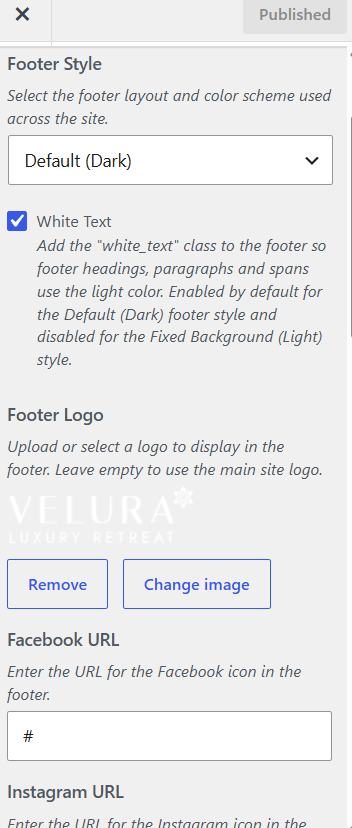 1. Style & Appearance
- Footer Style: Use this dropdown menu to choose the overall layout and color scheme applied to the footer across your site. The current selection is set to "Default (Dark)".
- White Text: When enabled, this setting applies the
white_textCSS class to the footer container, ensuring that all headings, paragraphs, and spans render in a light color for optimal contrast. - Default Behavior: This option is automatically enabled when the "Default (Dark)" footer style is selected, and disabled by default for the "Fixed Background (Light)" style.
2. Footer Branding
- Footer Logo: Upload or select a custom logo to display exclusively in the footer. To match the header branding, leave this field empty, and the theme will automatically use your main site logo. Use the "Change image" and "Remove" buttons to manage this asset.
3. Social Media URLs
Enter the complete destination URLs for your social profiles in the respective fields to activate their icons in the footer layout.
In this page: